![mia-logo-1.svg]](https://miahealth.no/hubfs/mia-logo-1.svg)
Once a user has been added to an organization and invited into Mia Insight, it is the user's turn to accept the connection and consent to data sharing. The connection to Mia Insight requires the user to have downloaded the Mia Health app and created an active user account.
There are two ways for a user to activate the invitation:
- Via Email: The user opens the email sent from Mia Health on their mobile device (where the app is installed) and clicks the "Accept invitation" button. This is a quick and easy method for individual invitations.
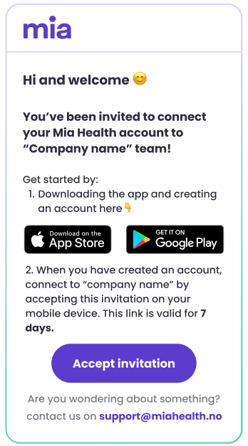
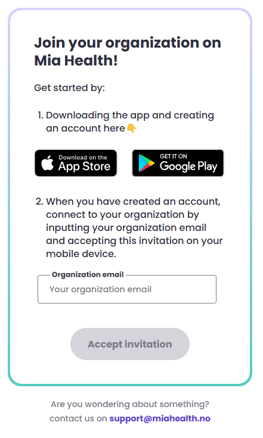
- Via Web Link: The user opens the link join.miahealth.no in the browser on their mobile device (where the app is installed) and enters the email address they were invited with into the "Email address" field before clicking "Accept invitation." This is ideal for bulk invitations and event triggered invitations.
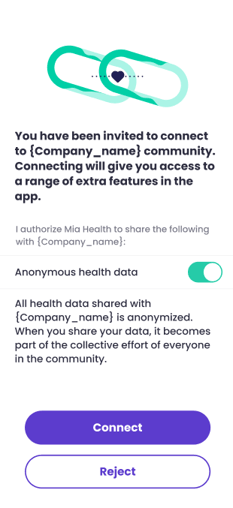
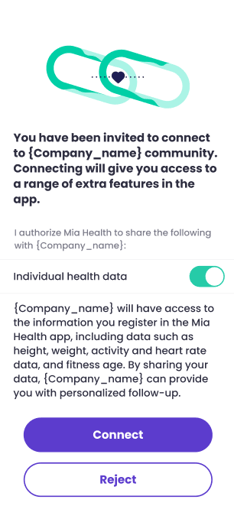
Regardless of how the user accepts the invitation, the Mia Health app will open, and a pop-up window will appear where the user can check the box to share "Anonymous health data" or "Individual health data" and click "Connect."
The type of data sharing depends on whether the user is connecting to a corporate organization or a healthcare provider.
Once this is completed, the user is connected to the organization.
The user can choose to disconnect from the organization or change their data sharing settings at any time in accordance with GDPR and data ownership. This can be done as follows:
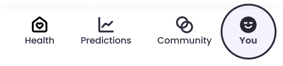
- Open the Mia Health app and tap "You" at the bottom right.
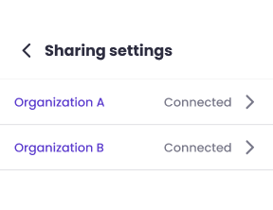
- Select "Sharing settings" and find their organization in the list. There, they can also see the status of the connection.
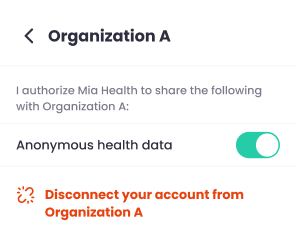
- Here, they can choose to "Disconnect" their user account or turn off/on sharing of "Anonymous health data" / "Individual health data".
If you didn't find the answer to your question, feel free to contact our user support.