![mia-logo-1.svg]](https://miahealth.no/hubfs/mia-logo-1.svg)
When a member has accepted the connection to Mia Insight, they can also be assigned an active role to manage other members, teams, activities, and other content.
Three different roles can be assigned:
-
Administrator: Has full access to all features for their organization and can add/remove new members regardless of role.
-
Manager: Has access to insights into community health, events, and challenges for members in their team(s).
-
Contributors: Has access to insights into community health, events, and challenges for members in all teams and the entire organization. They can also serve as a team leader.
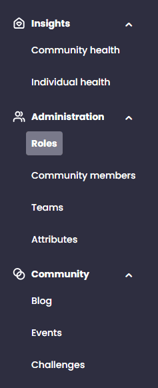
To assign roles, you must navigate to "Roles" under the "Administration" tab in the menu.
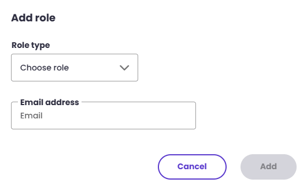
By pressing the "+ Add role" button on the right side of the screen, a box will appear where you can easily select the type of role and the email address of the person to whom the role will be assigned.

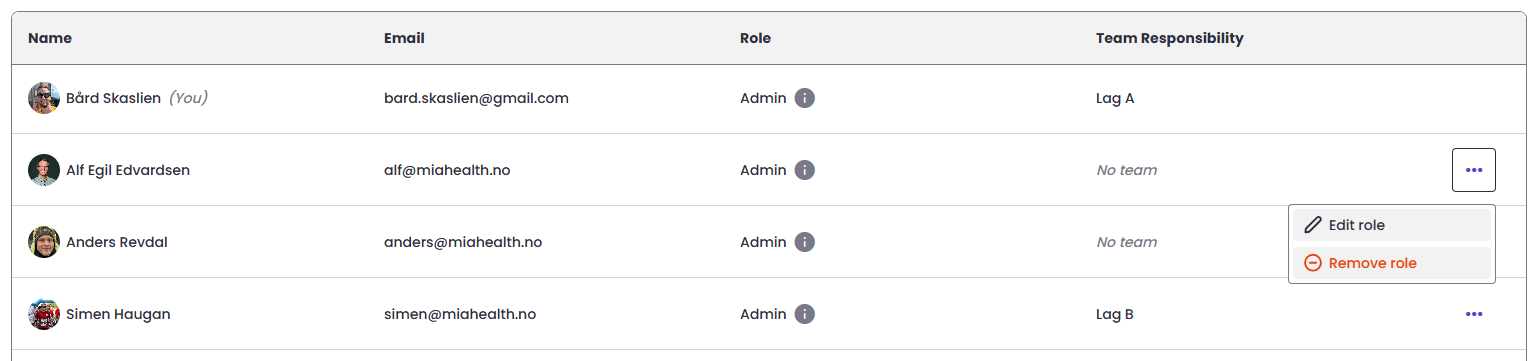
In the overview, you can quickly see all roles in your organization and click into specific roles as needed.

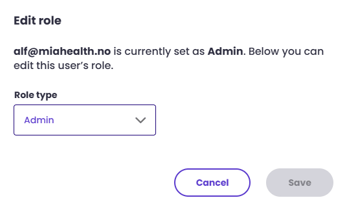
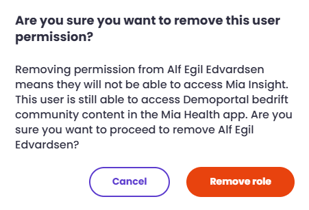
By clicking on the three dots far right on each row, you can change a role at any time by selecting "Change Role" or remove an assigned role by clicking "Remove Role." This action must be confirmed.
If you did not receive an answer to your inquiry, please feel free to contact our customer support.