![mia-logo-1.svg]](https://miahealth.no/hubfs/mia-logo-1.svg)
Through the event tool in Mia Insight, you can increase engagement among connected members by creating both physical and digital events directly within the Mia Health app.
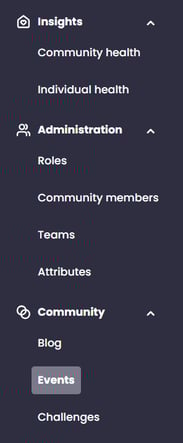
First, navigate to "Events" under the "Community" tab in the menu.
On the events homepage, click the "+ New Event" button on the right side to start your first event.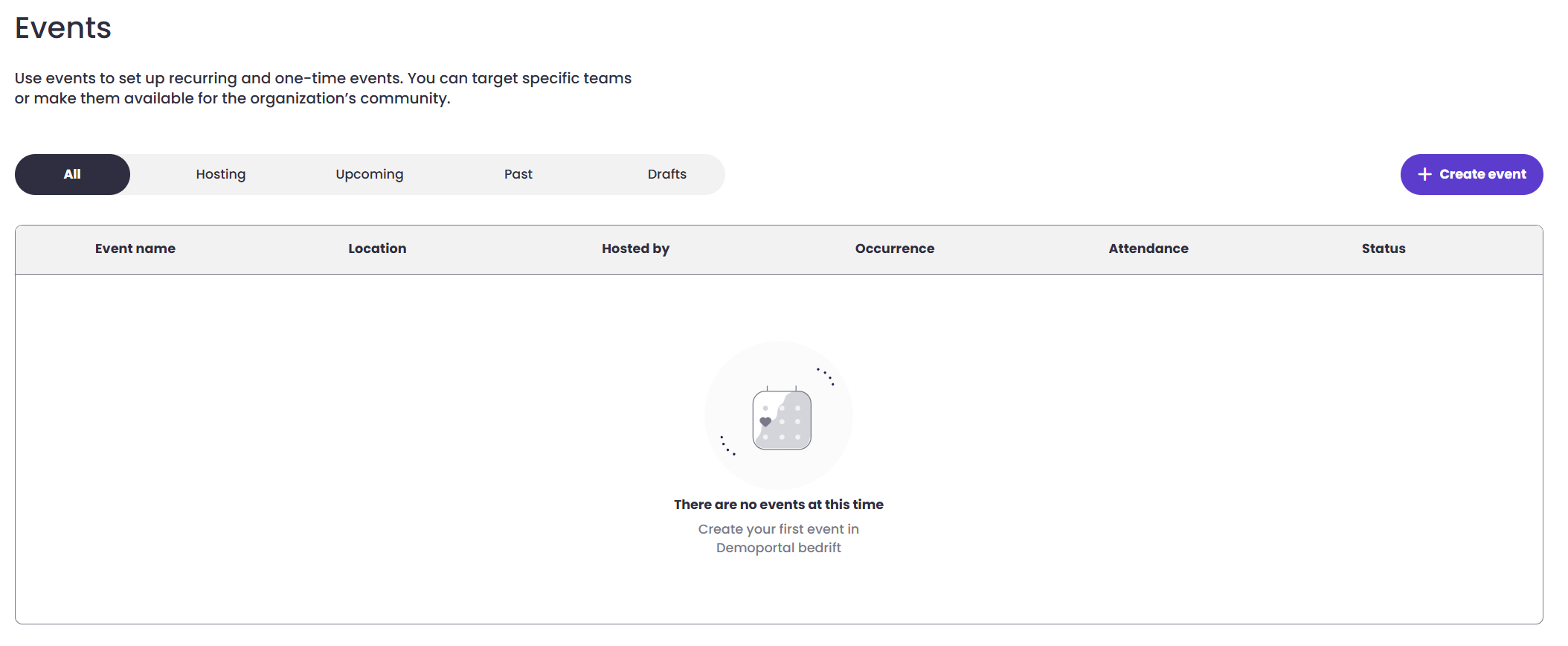
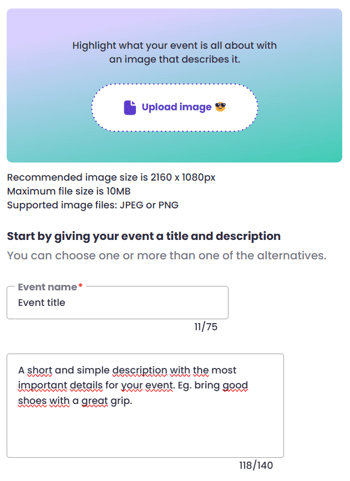
This opens the editing window, where you begin by adding an optional event image, an event title, and a short description.
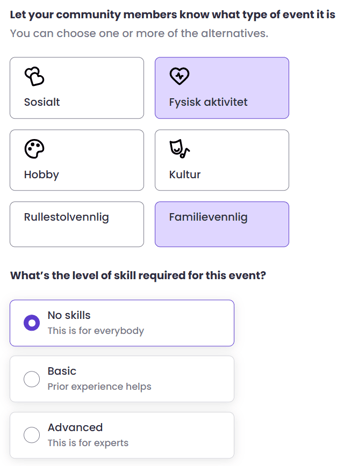
Then, define the event type and level. Under event type, you can choose between various boxes and select multiple, depending on the target audience and type. There are three level divisions that indicate who should and can participate.
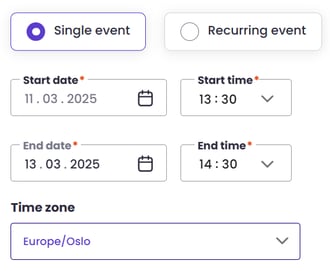
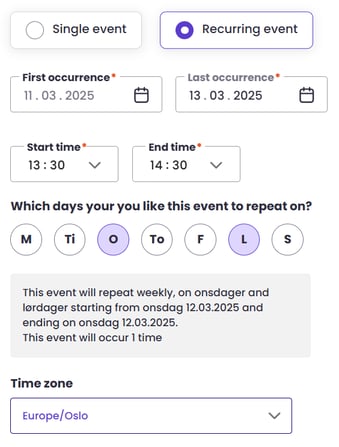
You then define the details around your event. Is it a single event or a recurring event?
For single events, select the start date and end date (can be the same day or span multiple days) and the from/to time, before selecting your time zone.
For recurring events, select the start date and end date (the period the event will be repeated), the time from/to, and which days in the period this will be repeated.
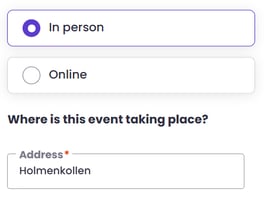
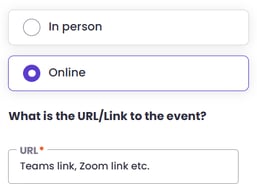
You then choose whether this is a physical or digital event.
For a physical event, enter the address/location in the search field and select from the list that appears.
For a digital event, paste the link to the event - be it Teams, Zoom, YouTube, etc.
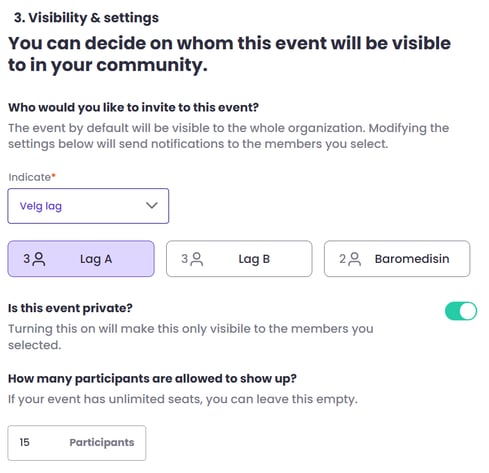
Before sending out the event invitation, you can also define visibility and distribution. You can choose to invite the entire organization, members of various teams, or the attributes in the attribute categories. You can also choose whether it is a private or open event, and the maximum number of participants.
A preview of how this will look in the app for the recipient is available by clicking the "Preview your event" link in the lower left corner.

You can choose to "Save as Draft" if you are not quite finished and want to resume work later. Do this by clicking the link in the lower right corner.

When you are finished and ready to publish, click the "Publish Event" button in the lower right corner. The event will then be immediately shared with the defined target audience in the Mia Health app.
If you did not receive an answer to your inquiry, please feel free to contact our customer support.