![mia-logo-1.svg]](https://miahealth.no/hubfs/mia-logo-1.svg)
Dividing your company, project-, patient-, or training groups into teams and assigning attributes makes communication, engagement, and follow-up easier. Teams and attributes can be used both when viewing "Community Health" and for creating, sharing and sending "Event," "Blogs," and "Challenges."
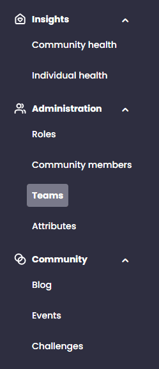
To create your own teams, navigate to "Teams" under the "Administration" tab in the menu.
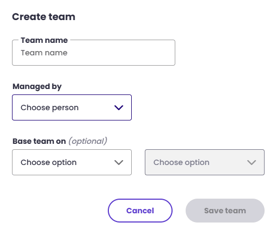
By pressing the "+ Create Team" button on the right side of the screen, a box will appear where you can easily enter the desired team name, who will lead the team, and whether you want to base the team on assigned properties, such as location, type of activity, etc.

Once the team is created, you can easily edit it by clicking on the three dots at the end of the row and selecting "Edit Team." You can then change the team name, team leader, and the properties on which the team is based.
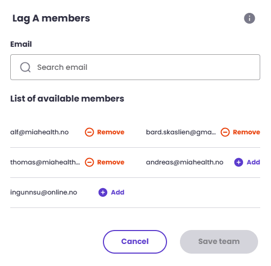
To add or remove members, you can now simply select "Edit Members" and either search for members manually or click on "+" or "-" next to the names of all registered members.
Here, you can also delete the team by clicking on "Delete Team." You must confirm this action before the team is permanently deleted.
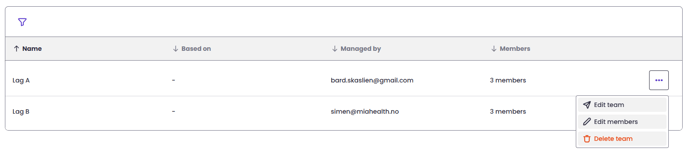
At any time you will find all teams, those you lead and memberless teams in the overall overview.

In addition to a general team structure, you can also create and assign properties to the teams and/or groups of individual members.
You can navigate to "Properties" under the "Administration" tab in the menu.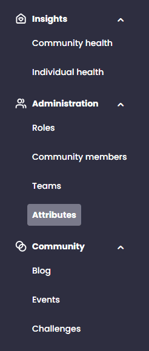
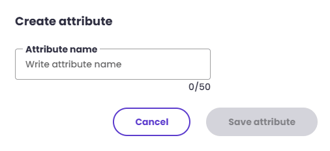
Here, you can create new attribute categories by pressing the "+ Create attribute" button on the right side of the screen. For example, you can create the category "Location" and add various "cities, municipalities, counties, and towns" as attributes. The attributes can be actively used in the creation and distribution of events and challenges, among other things. Members can be associated with one attribute in multiple categories.

If you did not receive an answer to your inquiry, please feel free to contact our customer support.