![mia-logo-1.svg]](https://miahealth.no/hubfs/mia-logo-1.svg)
As a healthcare professional (therapist, physician, or trainer), you can access a chat function for communication with connected patients/clients via Mia Insight.
Simply click on the "Chat icon" in the top right corner. This icon is accessible from all views.
When the chat window opens, locate an active conversation in the left-hand side menu or create a new one by clicking on the "Create chat" icon.
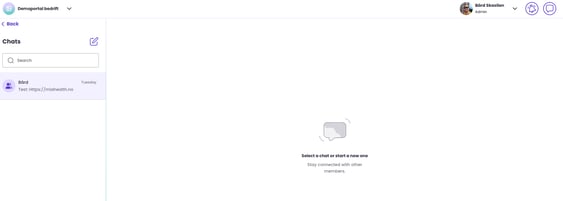
Once the chat window is open, you will see the conversation area.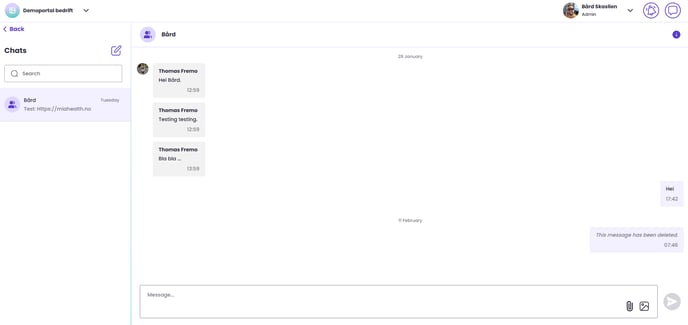
You have three primary options for sharing content with your patients, in addition to standard messages:
- Send files:
Click the "share file" icon within the message field at the bottom of the screen.
A file explorer will open, allowing you to attach a single .pdf file. - Send images:
Click the "share image" icon within the message field.
A file explorer will open, allowing you to attach .jpeg, .jpg, or .png image files. - Share links:
Directly type the URL (e.g., www.website.com, https://website.com, or simply website.com) into the message field.
Please note: the link will not appear active until the message is sent.
As a healthcare professional or trainer, you can also save messages as notes in the Mia Health logging tool. To do this, click on the desired message, then the "three dots" icon, and select "Log message".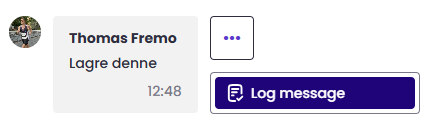
The message will then be saved as a note in the logging tool under the individual patient's profile in "Individual Health". For more information, click here
If you didn't find the answer to your question, feel free to contact our user support.