![mia-logo-1.svg]](https://miahealth.no/hubfs/mia-logo-1.svg)
"Community Health Overview" provides a rapid overview of the health metrics of your members within a group context. This includes both AQ scores, fitness age, and the number of individuals utilizing or synchronizing with the Mia Health app.
Please note that only aggregated group data is shared. A minimum of five connected members must share data for statistics and data points to be displayed, both for the entire organization and individual teams. This design is implemented to safeguard the data privacy of connected members and is compliant with GDPR regulations.
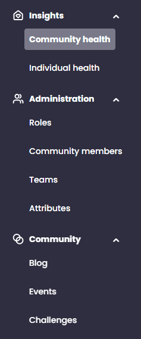
To access "Community Health", navigate to the "Insights" tab within the menu.
The top segment offers a quick overview of the entire organization. The frame displays Today's summary, providing a snapshot of the current status. This includes the number of invited members, those who have accepted the connection, and those who have consented to data sharing. Additionally, it presents the latest data contributors and offers a quick insight into average AQ scores and fitness age compared to actual age.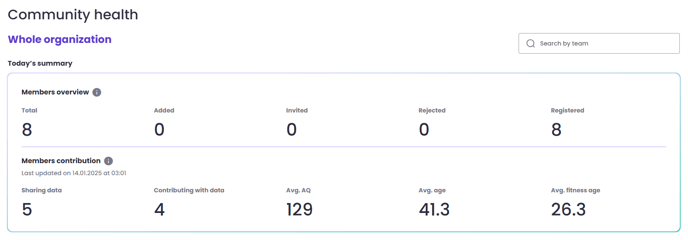
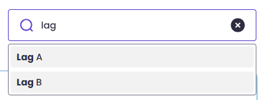
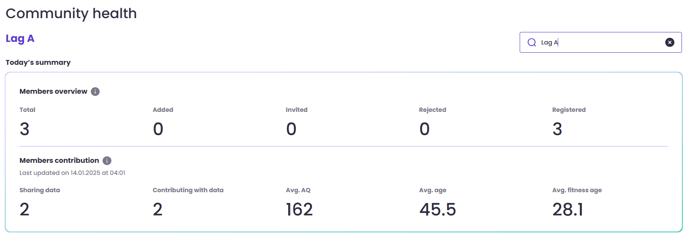
This data can also be viewed per team. To do so, use the search field on the right and enter the desired team name. The teams accessible to you are determined by your role within Mia Insight. An administrator can view all teams and the entire organization, while a team leader can only search for their own team.
Within the statistics section, you can select the desired data period by adjusting the "Start date" and "End date" fields.

Three statistical boxes display relevant data for your organization or team.
The first box presents the "Average AQ." It includes two data types: "Members contributing data" and "Average AQ." By hovering over the graph on different days, you can view the average AQ on specific days and the number of data contributors.
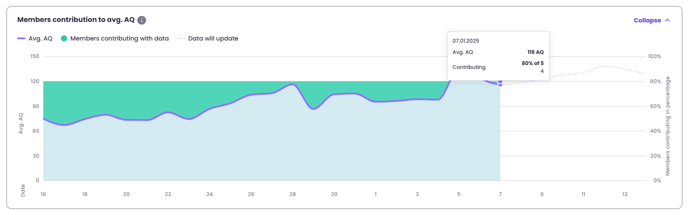
The second box displays the "Member avg. AQ distribution" and shows the number of members within each AQ level. By hovering over the graph on different days, you can see the number of members in each level on that particular day.
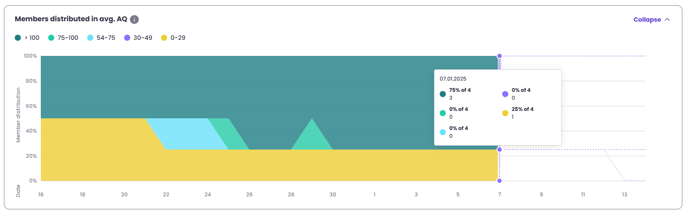
The third box is for "Fitness age" and illustrates the development of fitness age over time compared to actual age. By hovering over the graph on different days, you can view detailed data for that specific day. This includes the average actual age and fitness age, the difference between the two, and the number of members falling into different gradings.
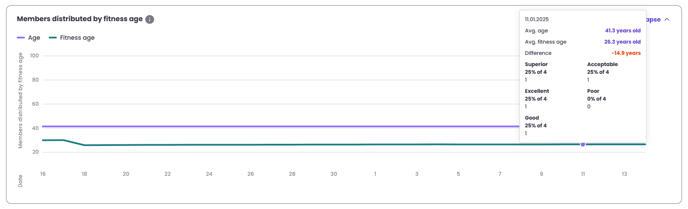
If you are a healthcare professional, therapist, or trainer, you may also access individual data if the members have consented to sharing it. For more information, please refer to [link].
If you did not receive an answer to your inquiry, please feel free to contact our customer support.