![mia-logo-1.svg]](https://miahealth.no/hubfs/mia-logo-1.svg)
As a healthcare professional (trainers, therapists, physicians etc.), you can access individual health data and follow-up through Mia Insight. This user connection is consent-driven and individual.
In "Individual Health," you can quickly gain an individual overview of your members' progress and follow up with direct interventions and measures. Here, you will see detailed data points, heart rate curves, time spent in different zones, AQ, and fitness age development.
First, navigate to "Individual Health" under the "Insights" tab in the menu.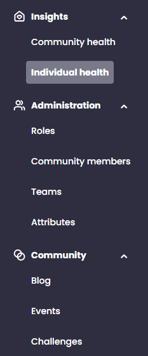
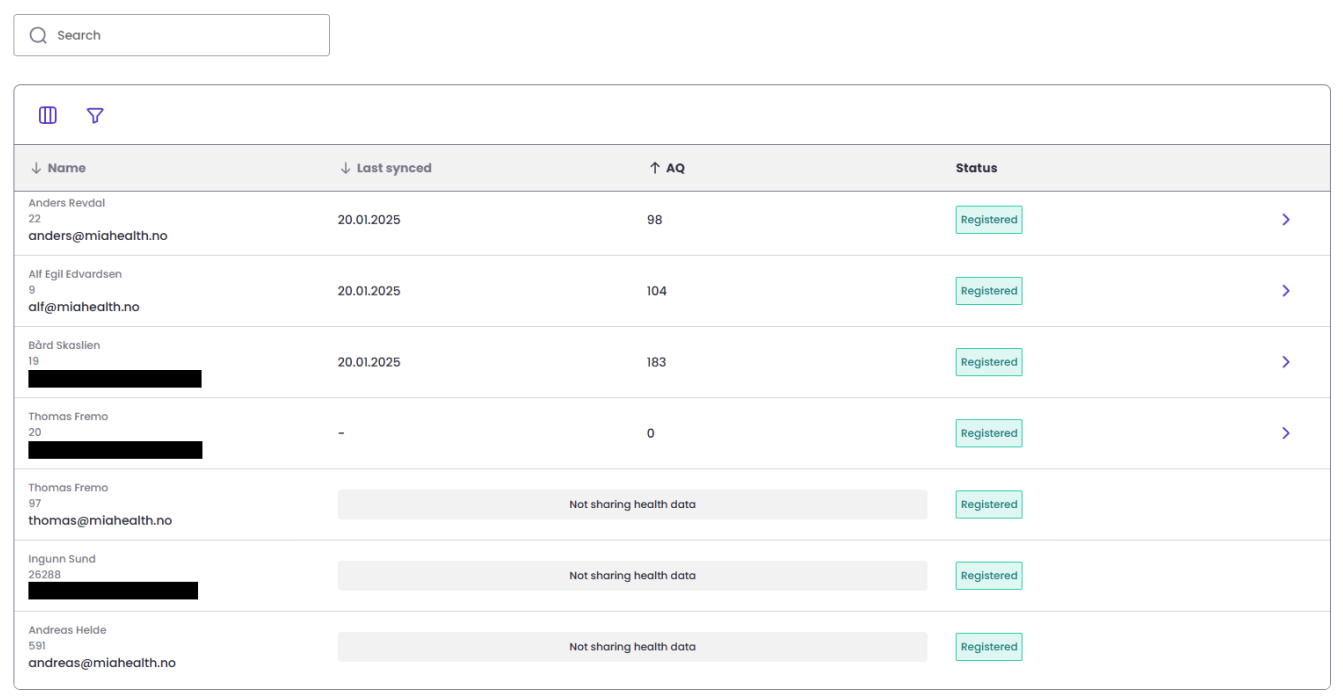
Here, you will get an overview of all members who share individual data with your organization and those who have chosen not to share. You can easily search for each individual member via the search field at the top of the page.
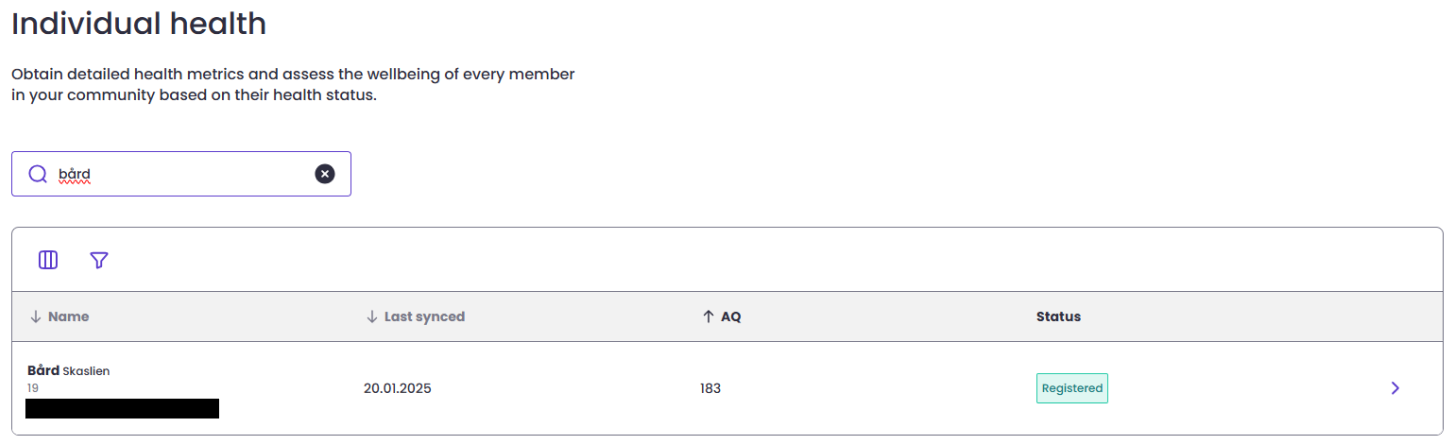
When you navigate to a spesific member, you will see their individual data screen. At the top, you will see detailed data points - gender, age, height, weight, resting heart rate, and maximum heart rate.

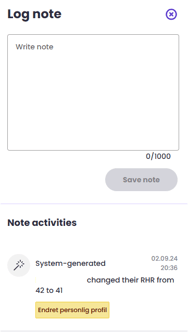
You can also add notes to the user profile - such as follow-up points, exercise data, comments on data points, milestones achieved, etc. You do this by clicking the "Log note" button on the right. When you are finished, click the "Save note" button. You will also see system-generated changes from the user in the log.

In the statistics section itself, you can choose which period you want to view data from by changing the "Start date" and "End date" fields.

There are three statistics boxes that show you relevant data for the user, as well as a table with detailed summary data.
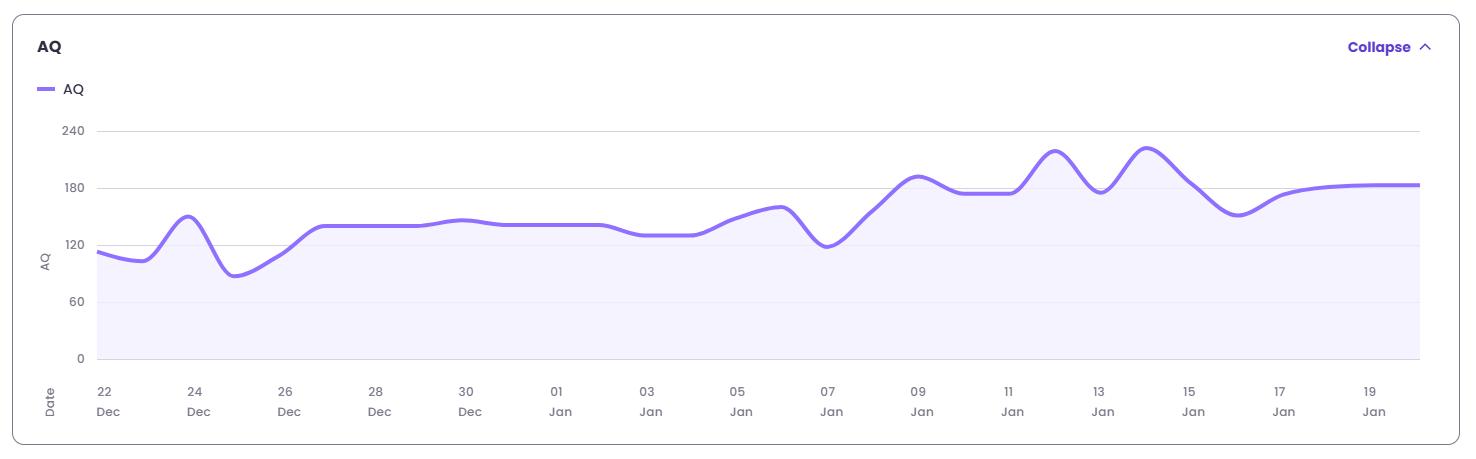
The first box is for "AQ". Here you see a daily curve of the user's AQ. By hovering over the graph and clicking on the different days, you can see the current AQ for the selected day.
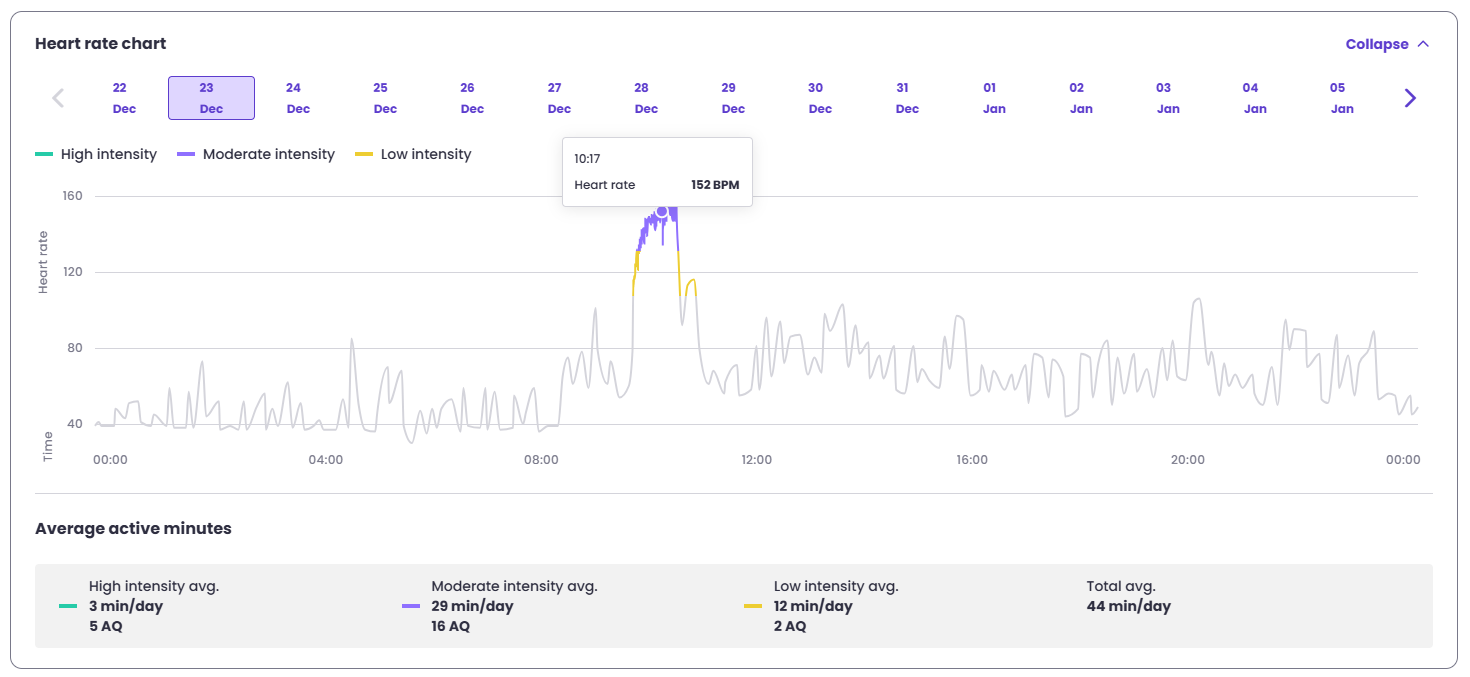
The second box "Heart rate chart" shows the user's unique heart rate data per selected day. By hovering over the heart rate curve at different points, you will see detailed "Heart rate" with the time. Below the heart rate curve, you can see data on the number of minutes in different intensity zones for the current day.
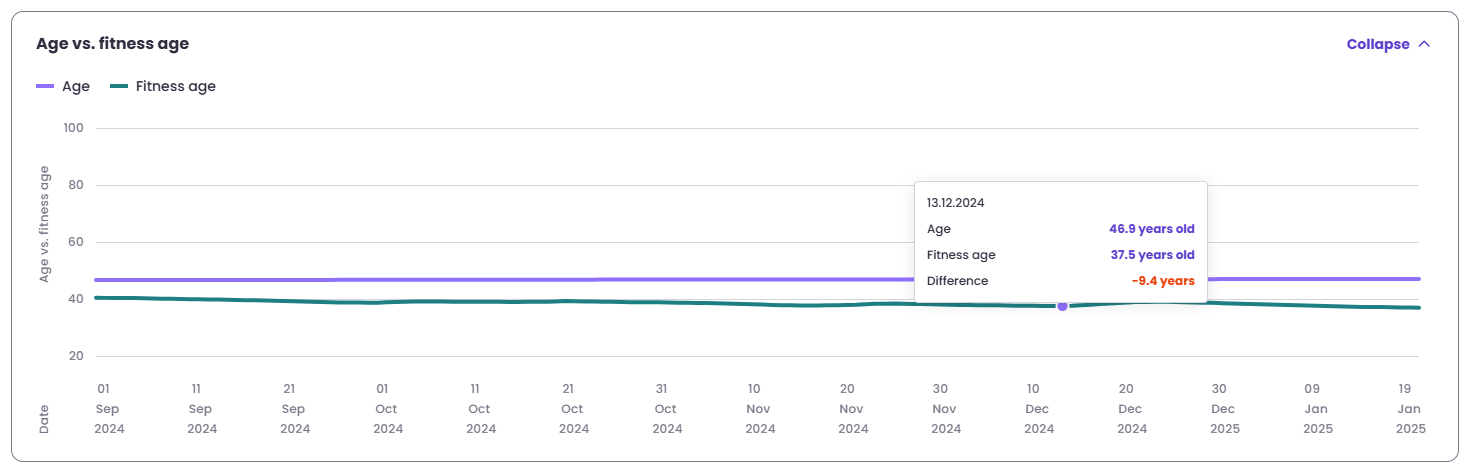
The third box is for "Fitness age" and shows the development of fitness age over time versus real age. By hovering over the graph on the different days, you can see detailed data for the current day - what is the real age and fitness age, what is the difference in years.
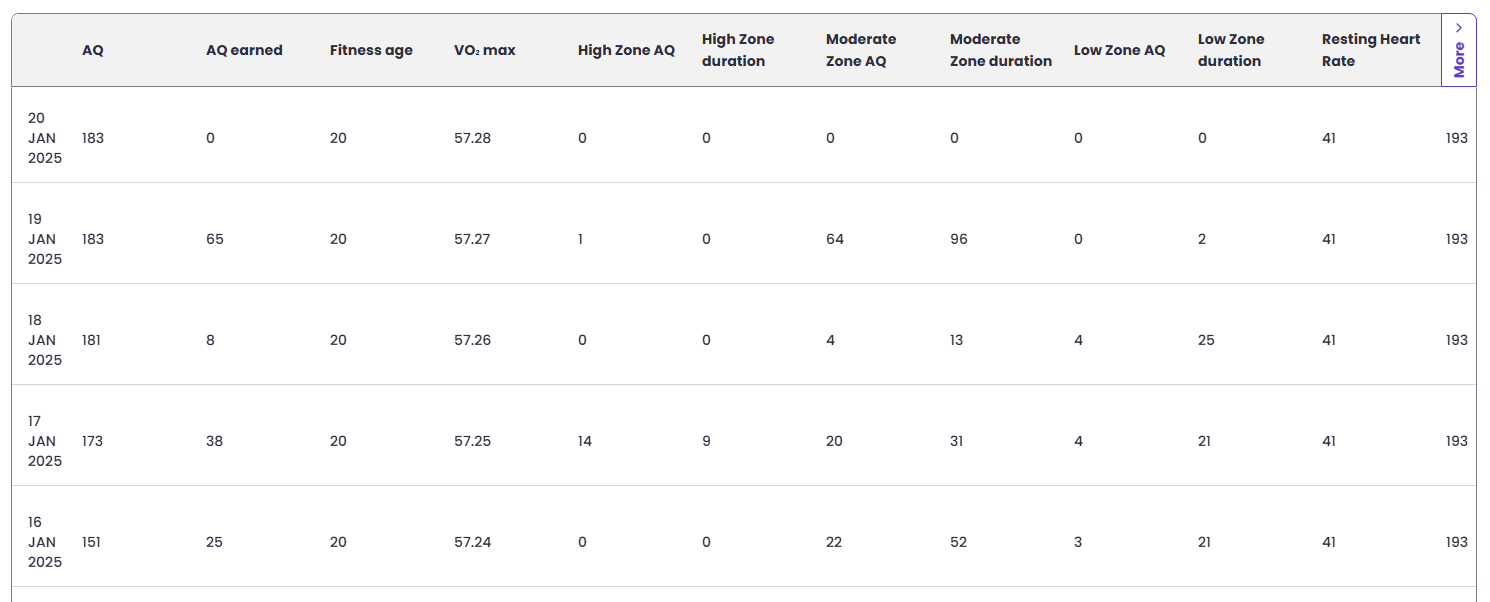
The table at the bottom shows a systematic overview of all recorded data points and the day-to-day development over time. A good way to get a quick overview of the total development.
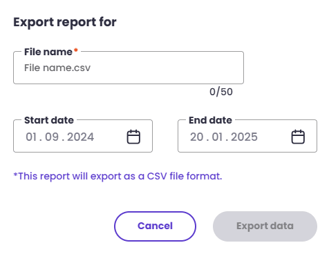
You can export data when needed. This is currently done via .csv format. Click the "Export report" button at the top of the profile screen. In the box, you set the desired "File name" and select the desired period in the "Start date" and "End date" fields. Click "Export data" when the given period and file name have been entered.

If you did not receive an answer to your inquiry, please feel free to contact our customer support.